Navigation SDK User Guide
Setup
Prerequisites
Access Required
To obtain a GitLab account, SDK artifacts, the Maven repository URL, an API key, and access to the demo application repository, you must first contact us.
This SDK is distributed through a private GitLab repository. To complete the setup, you will need:
- Our organization's GitLab account.
- Personal Access Token (PAT): A GitLab PAT with the
read_apiscope.- You can generate one in your GitLab User Settings -> Access Tokens.
- You are encouraged to generate multiple tokens as needed for different purposes.
- To enhance security and manageability, we strongly advise generating a distinct PAT for each specific environment where you use the token (e.g., a dedicated token for local development and a separate one for CI pipelines).
- Store this token securely and treat it like a password.
- API Key: The Navigation SDK requires an API key to function properly. You must provide a valid API key from your service provider to use the features of the library.
Installation
In your GRADLE_USER_HOME directory, create a gradle.properties file with the following content:
Replace YOUR_ACCESS_TOKEN with your Gitlab Personal Access Token (PAT):
Add a repositories section to your build.gradle or settings.gradle file:
dependencyResolutionManagement {
    repositories {
        maven {
            url = uri("REPOSITORY_URL")
            name = "GitLab"
            credentials(HttpHeaderCredentials::class) {
                name = "Private-Token"
                value = providers.gradleProperty("navigationSdkPackageRepositoryToken").getOrElse("")
            }
            authentication {
                create("header", HttpHeaderAuthentication::class)
            }
        }
    }
}
Replace REPOSITORY_URL with the proper repository URL. This URL can be obtained by contacting us (as mentioned in the Access Required section above).
Add Dependency
Replace $navigation_sdk_version with the latest version from Releases page
Sync your Gradle project, and it should now download the specified artifact from the GitLab Package Registry.
See the documentation for further details.
Getting started
Add the API key to your app
One common way to supply the API key is to add it to your gradle.properties file (which should not be committed to version control):
Replace YOUR_API_KEY with your API key
Then, you can read it in your app's build.gradle file like this:
val apiKey: String? = properties["navSdkApiKey"] as? String
android {
    buildFeatures {
        buildConfig = true
    }
    ...
    defaultConfig {
        ...
        buildConfigField("String", "NAV_SDK_API_KEY", "\"$apiKey\"")
    }
}
Security notice
Make sure not to hard-code your API key directly into your source code or commit it to version control. Always keep your API key secure and avoid exposing it in public repositories or logs. Consider using backend proxies or encrypted secrets management for additional protection if needed.
Initialize the SDK
Before you can use any functionality of the SDK, you must initialize it with your configuration parameters. This is a mandatory first step.
Call NavigationApi.init() once, for example, in your Application.onCreate(). This method requires an InitParams object.
You must first build an InitParams object using the InitParams.Builder. This builder requires two parameters in its constructor:
context (Context): The application context, needed for accessing system services.apiKey (String): Your unique API key for authentication. Contact us to get the API key.
import com.naviexpert.navigationsdk.api.NavigationApi
import com.naviexpert.navigationsdk.api.params.init.InitParams

// In your Application.onCreate()
val initParams = InitParams.Builder(
    context = this.applicationContext,
    apiKey = BuildConfig.NAV_SDK_API_KEY
).build()

NavigationApi.init(initParams)
Warning:
Calling init() more than once will throw an IllegalStateException. To prevent this, ensure that the
sdkState value is SdkState.Disposed before calling.
Observe the SDK Lifecycle (sdkState)
The init() method is asynchronous, so you cannot use the SDK immediately after calling it.
You must observe the NavigationApi.sdkState StateFlow<SdkState> to monitor the initialization process. The SDK is only ready for use
when this flow emits the SdkState.Initialized state.
---
title: SDK Lifecycle (sdkState)
---
stateDiagram-v2
    Disposed --> Initializing : init()
    Initializing --> Initialized
    Initialized --> Authenticating : Periodic auth
    Authenticating --> Initialized : Auth Success
    Initialized --> Disposing : dispose()
    Disposing --> Disposed
A good place to observe this is in a ViewModel tied to your main Activity or Fragment.
import com.naviexpert.navigationsdk.api.NavigationApi
import com.naviexpert.navigationsdk.api.SdkState.*

    init {
            // Collect the SDK's lifecycle state
        NavigationApi.sdkState.onEach { state ->
                when (state) {
                    is SdkState.Initializing -> {
                        // SDK is initializing. Show a loading spinner.
                        Log.d("MyApp", "SDK is initializing...")
                    }
                    is SdkState.Authenticating -> {
                        // This can happen after Initialized during periodic checks
                        Log.d("MyApp", "SDK is re-authenticating...")
                    }
                    is SdkState.Initialized -> {
                        // SDK is ready! You can now call other SDK methods.
                        // Unlock features, hide loading spinner.
                        Log.d("MyApp", "SDK is Initialized and ready.")

                        // Now it's safe to call other methods
                        // NavigationApi.navigate(navigationParams)
                    }
                    is SdkState.Disposing -> {
                        // SDK is shutting down
                        Log.d("MyApp", "SDK is disposing...")
                    }
                    is SdkState.Disposed -> {
                        // SDK is not running
                        Log.d("MyApp", "SDK is disposed.")
                    }
                }
            }.launchIn(viewModelScope)
        }
Waiting for a Specific State
For cases where you simply need to ensure the SDK is ready before performing a single action
(like starting navigation when a user clicks a button), you can use the awaitSdkState(state: SdkState, action: (() -> Unit))
helper method.
This suspend function pauses your coroutine until the SDK reaches the desired state (e.g., SdkState.Initialized) and then optionally executes a provided action.
Example: Triggering navigation from a button click.
import com.naviexpert.navigationsdk.api.params.navigation.NavigationParams

...

fun onStartNavigationPressed(params: NavigationParams) {
    // Launch a new coroutine to handle this event
    viewModelScope.launch {
        Log.d("MyApp", "Navigation requested. Waiting for SDK to be Initialized...")

        // This line will SUSPEND the coroutine until the state is Initialized
        NavigationApi.awaitSdkState(SdkState.Initialized) {

            // This action block executes *after* the state is reached
            Log.d("MyApp", "SDK is Initialized. Calling navigate().")
            // NavigationApi.navigate(params)
        }

    }
}
Observe Operational Errors (errorsState)
Separately from its lifecycle, the SDK provides an errorsState StateFlow<Errors>, which reports all operational errors.
The emitted Errors object contains:
activeErrors: List<Error>: The full list of currently active errors. Use this to update UI state (e.g., show/hide banners).diff: Diff: An object withadded,removed, andupdatedlists. Use this to trigger one-time events (e.g., Snackbars, logs).
import com.naviexpert.navigationsdk.api.NavigationApi
import com.naviexpert.navigationsdk.api.error.Errors
import com.naviexpert.navigationsdk.api.error.Error
...

...

// e.g  in the ViewModel init
    NavigationApi.errorsState.onEach { errors: Errors ->

        // --- State-Based Approach (using activeErrors) ---
        // Check if any GPS-related error is active
        val isGpsErrorActive = errors.activeErrors.any {
            it is Error.Gps
        }
        // _gpsWarningFlow.value = isGpsErrorActive // Update UI state

        // --- Event-Based Approach (using diff) ---
        // Show a message for *new* errors or guide the user to the solution
        errors.diff.added.forEach { newError ->
            Log.w("SDK_Error", "New error: $newError")
            // _snackbarEvents.emit("Error: ${newError.message}")
            if (newError is Error.Gps){
                // check if device location services are enabled.
                // guide the user to the solution
                // e.g show native pop-up dialog that allows the user to enable location services
            }
        }

        // Log resolved errors
        errors.diff.removed.forEach { resolvedError ->
            Log.i("SDK_Error", "Resolved error: $resolvedError")
        }

    }.launchIn(viewModelScope)
Important Note:
sdkState, errorsState, and navigationState are special StateFlow implementations that guarantee all changes are notified. Unlike a
standard StateFlow, they do not use conflation, so you will receive every state change and error event, even if they are
emitted in rapid succession.
All errors are subclasses of the Error sealed class. To provide specific feedback, check both the Type (Network, Gps, File) and the Action (what the SDK was doing).
Error Types:
-
Error.Network: Internet or server issues. -
Error.Gps: Location provider issues (disabled, no signal). -
Error.File: Storage read/write issues.
Key Actions (Error.Action):
-
AUTHENTICATE: Error during API key validation or access permission. -
SYNCHRONIZE: Error downloading required assets. -
RESOLVE_LOCATION: Error getting the user's initial position. -
COMPUTE_ROUTE: Error during route calculation. -
FETCH_MAP: Error downloading map data. -
FETCH_CONTEXT: Error fetching live data (e.g., traffic).
Handling Actionable Errors
Error.Gps and Error.Network represent issues that are often user-fixable. Your application's role is to detect these states and effectively guide the user toward a solution.
On Error.Gps:
-
Use the platform's standard mechanisms to check if device-wide location services are enabled.
-
If disabled, clearly inform the user why location is needed and prompt them to enable it.
-
Recommended: Whenever possible, use a system-provided mechanism (like a native pop-up dialog) that allows the user to enable location services directly within your app's context.
-
Alternatively: Provide a shortcut that directs the user to the device's system settings page for location services.
On Error.Network:
-
Use the platform's connectivity APIs to check for an active internet connection (either Wi-Fi or mobile data).
-
If connectivity is unavailable, inform the user and prompt them to check their connection.
-
A common approach is to provide a shortcut that directs the user to the relevant system settings (e.g., Wi-Fi or general network settings).
Once the user successfully re-enables the required hardware or service, the SDK will typically
detect the change, retry automatically, and the error will move to the diff.removed list upon resolution.
Disposing the SDK
To perform a full shutdown, stop all operations, and release all SDK resources, call NavigationApi.dispose().
This method stops all ongoing tasks (including navigation, location tracking, and any foreground service) and cleans up the SDK's
internal state. The sdkState will transition to SdkState.Disposing and then to SdkState.Disposed.
Once disposed, the SDK cannot be used until NavigationApi.init() is called again.
Prerequisite
Before calling dispose(), ensure all other SDK-related objects (e.g., NavigationMapView or MapView) are destroyed and no
longer in use.
Throws: IllegalStateException if the method is called when the sdkState is already SdkState.Disposed or SdkState.Disposing.
Location Tracking
Enabling Location Tracking
Before the SDK can perform any navigation-related tasks, such as calculating a route or starting guidance, it must first be aware
of the user's current location. You must manually enable location tracking by calling startLocationTracking().
Required Permissions:
This method requires android.permission.ACCESS_FINE_LOCATION and android.permission.ACCESS_COARSE_LOCATION.
You must ensure these permissions are granted before calling this function, or it will throw a SecurityException.
A typical flow is:
- Call
NavigationApi.init(initParams). - Ensure required permissions are granted.
- Wait for
SdkState.Initialized(e.g.,NavigationApi.awaitSdkState(SdkState.Initialized)). - Call
NavigationApi.startLocationTracking().
Only after these steps is the SDK ready to navigate().
Stopping Location Tracking
Just as you must manually start location tracking, you must also manually stop it by calling
NavigationApi.stopLocationTracking().
The only other time location tracking is stopped automatically is when the entire SDK is shut down
via NavigationApi.dispose(), which cleans up all resources.
Tip
Best Practice: Call stopLocationTracking() when your application no longer requires
location updates, for example, when the user navigates away from your map or
navigation-focused Activity/Fragment.
Managing the Navigation Session
Once the SDK is in the SdkState.Initialized state, you can begin a full turn-by-turn navigation
session. Managing the session involves:
- Preparing
NavigationParamsto define the destination and session options. - Calling
NavigationApi.navigate(navigationParams)to start the session. - Observing
NavigationApi.navigationStateto react to session state changes (like re-routing or arriving). - Calling
NavigationApi.updateNavigation(event, forced)to update the currently ongoing navigation session. - Calling
NavigationApi.startVoiceGuidance()andNavigationApi.stopVoiceGuidance()to enable or disable voice instructions as needed. - Calling
NavigationApi.stopNavigation()to end the session.
Required Permissions:
Before you can start navigation, your app must have been granted android.permission.ACCESS_FINE_LOCATION
and android.permission.ACCESS_COARSE_LOCATION permissions by the user.
The navigate() method is annotated with @RequiresPermission. Calling it without the required
permissions will result in a SecurityException at runtime.
Prepare Navigation Parameters (NavigationParams)
To start navigation, you must first define where to go and how. This is done using the NavigationParams.Builder,
which requires at least one Waypoint object.
// Create your destination waypoint(s)
val destination = Waypoint(GeoPoint(latitude, longitude))

// Build the navigation parameters
val navigationParams = NavigationParams.Builder(destination)
    .setComputeTraffic(true) // If true - all computed routes will have representation of traffic. (default: true)
    .setAutoRouteRecompute(true) // Automatically re-route if off-track (default: true)
    .setStartForegroundService(true) // Keep navigation active in background (default: false)
    .build()
Foreground Service & Android 14
Setting setStartForegroundService(true) is critical for a stable navigation experience, as it allows the SDK to run reliably
even when your app is backgrounded.
From Android 14 (API 34) onwards, to display the persistent notification associated
with the service, your app must also have the android.permission.POST_NOTIFICATIONS permission. If this permission is not
granted, the foreground service will still run correctly, but the notification will not be visible to the user.
Start Navigation navigate()
With your parameters ready, call NavigationApi.navigate().
It's crucial to only call this when the SDK is Initialized and navigation is NotStarted.
The awaitSdkAndNavigationState helper is perfect for this. The navigate() method will throw an IllegalStateException
if called at an inappropriate time (e.g., SDK is not ready or another navigation is already in progress).
import com.naviexpert.navigationsdk.api.NavigationApi
import com.naviexpert.navigationsdk.api.SdkState
import com.naviexpert.navigationsdk.api.NavigationState
import com.naviexpert.navigationsdk.api.params.navigation.NavigationParams
...

// Example method in your ViewModel
fun onStartNavigationPressed(params: NavigationParams) {
    viewModelScope.launch {
        NavigationApi.awaitSdkAndNavigationState(SdkState.Initialized, NavigationState.NotStarted) {
            NavigationApi.navigate(params)
        }
    }
}
Important info
Remember to call startLocationTracking() before attempting to navigate. This is required to initialize location updates,
which are essential for correct tracking and route guidance
Observe the Navigation State (navigationState)
Once started, the session's lifecycle is broadcast via NavigationApi.navigationState. This is a special
StateFlow<NavigationState> that provides comprehensive information about the ongoing navigation session.
---
title: Navigation Lifecycle (navigationState)
---
stateDiagram-v2
    NotStarted --> Starting : navigate()
    Starting --> Navigating
    Navigating --> Navigating : internal metadata (state) change
    Navigating --> Stopping : stopNavigation()
    Stopping --> NotStarted
You can collect this StateFlow, for example, in your Activity or ViewModel to update the UI or react to data changes.
Navigating state
The Navigating state is continuously updated as its internal metadata (state) changes.
Checkout KDoc documentation and exmaple usage in Demo App (debug panel) for more details.
Showing Navigation UI
Default NavigationActivity
The SDK provides a pre-built Activity to quickly display a full navigation interface (loading dialog, map,
turn-by-turn instructions, etc.).
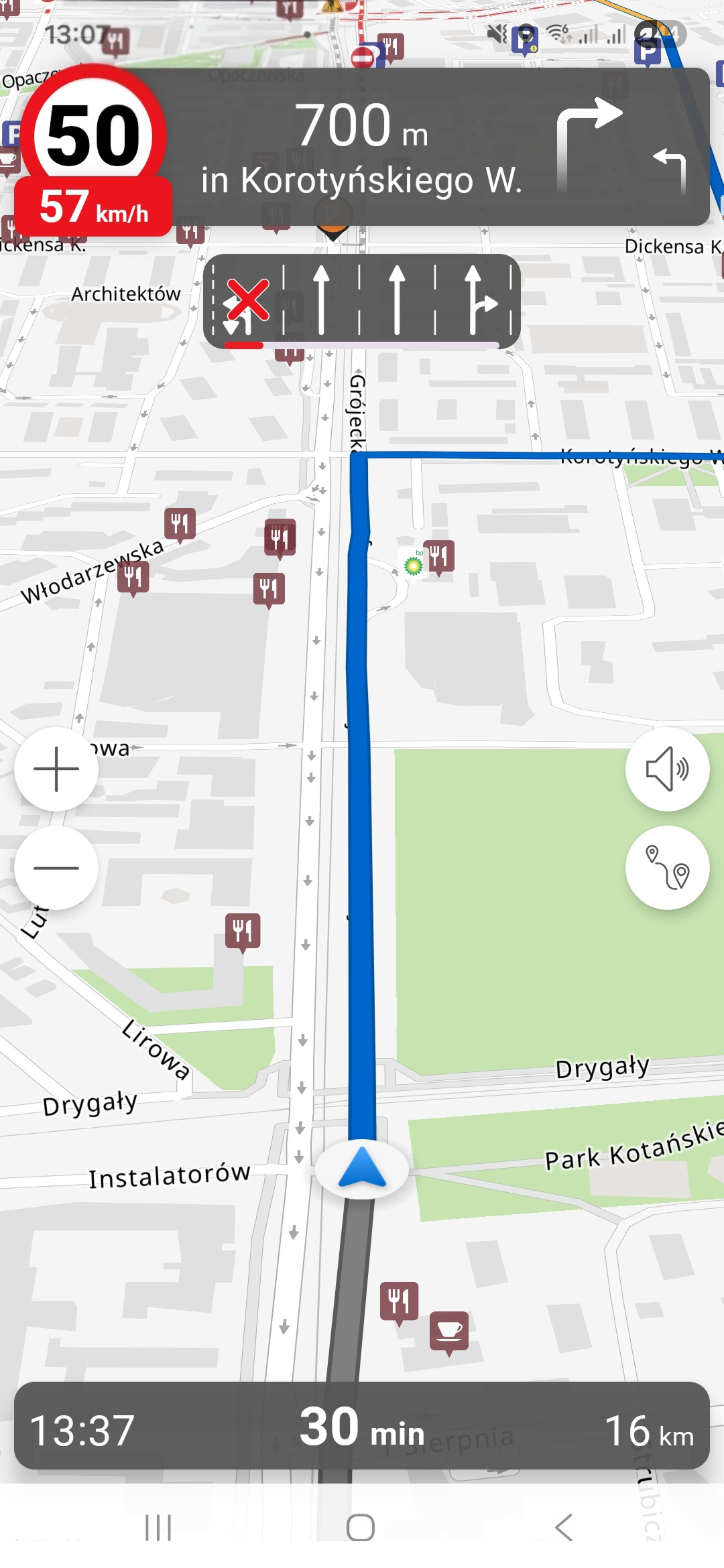
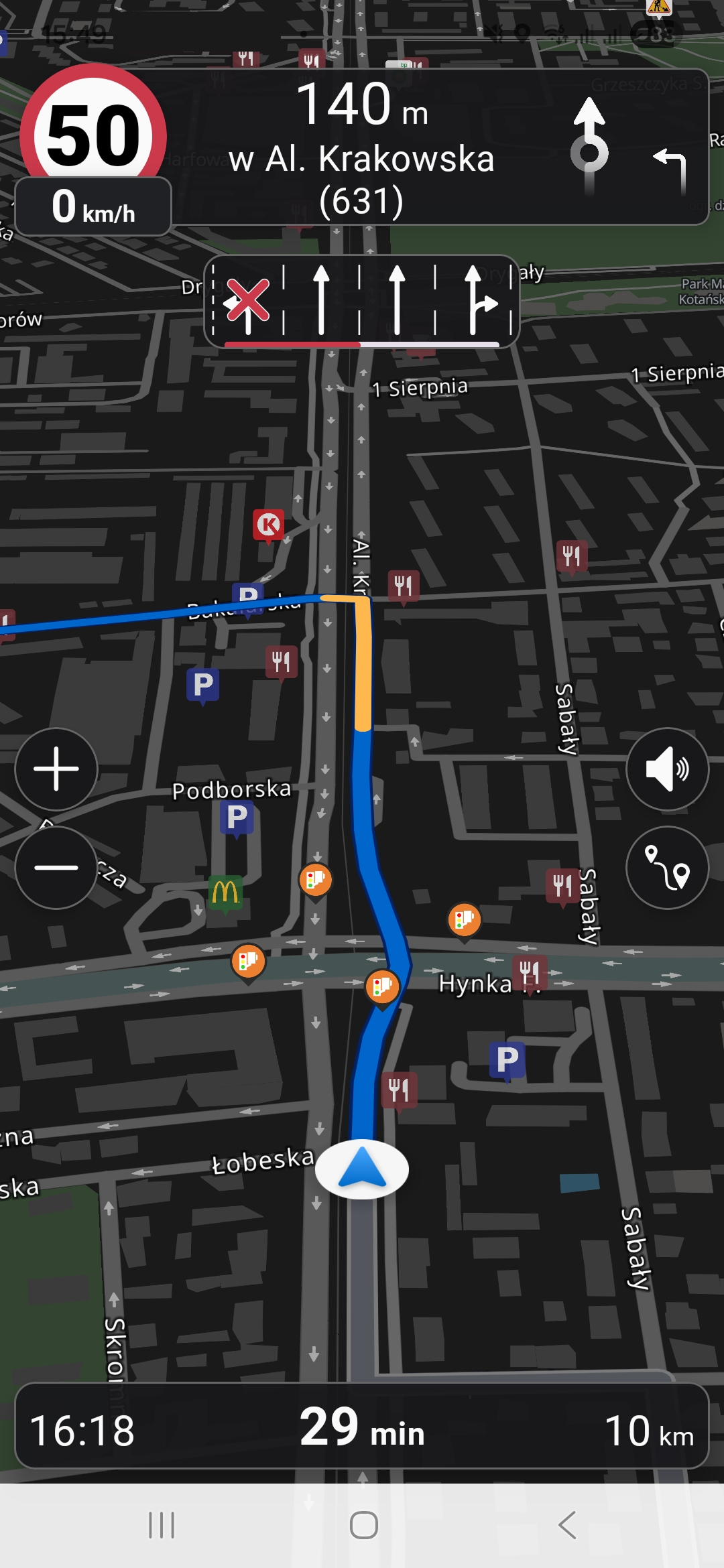
To launch it, call NavigationApi.startNavigationActivity(context, stopNavigationOnActivityDestroy).
The stopNavigationOnActivityDestroy = true parameter is very useful.
It automatically calls stopNavigation() for you when the user closes this default Activity.
Important info
startNavigationActivity() does not start a new navigation. It only provides a UI to visualize the session you have already
started with NavigationApi.navigate().
// 1. First, you must start navigation as shown before
fun showDefaultNavigationUi(context: Context) {
    // Check if SDK is initialized and navigation is active
    if (NavigationApi.sdkState.value is SdkState.Initialized &&
        NavigationApi.navigationState.value is NavigationState.Navigating
    ) {
        NavigationApi.startNavigationActivity(
            context = context,
            stopNavigationOnActivityDestroy = true // Automatically stop navigation when the activity is closed
        )
    } else {
        Log.w("MyApp", "Cannot show default UI: SDK not ready or navigation not active.")
    }
}
Building a Custom UI with Jetpack Compose
While startNavigationActivity() is the fastest way to show a complete navigation screen, it offers limited customization. For
full control and seamless integration with Jetpack Compose, you can build your own navigation UI.
The SDK provides two key building blocks for this:
-
NavigationMapView: A@Composablefunction provided by the SDK that renders the map, the route, and all navigation overlays. -
IOverlayViewModel: An interface for aViewModelthat acts as the "brain" forNavigationMapView. It manages the state and logic for the navigation UI.
To link them, you must get an instance of the IOverlayViewModel from the NavigationApi.
How to Use It
-
Get the
ViewModel: In yourActivityorFragment(which areViewModelStoreOwners), callNavigationApi.getNavigationViewModel(this)to retrieve theViewModelinstance. -
Pass the
ViewModel: Pass thisViewModelinstance down to your composable screen. -
Call
NavigationMapView: In your composable screen, call theNavigationMapView(viewModel = ...)composable.
This approach allows you to place the NavigationMapView anywhere in your composable hierarchy. You can surround it with your
own buttons, headers, or bottom sheets.
import com.naviexpert.navigationsdk.api.NavigationApi
import com.naviexpert.navigationsdk.ui.NavigationMapView
import com.naviexpert.navigationsdk.ui.IOverlayViewModel
...

class MyNavigationActivity : ComponentActivity() {

    override fun onCreate(savedInstanceState: Bundle?) {
        super.onCreate(savedInstanceState)

        // 1. Get the ViewModel from the NavigationApi, scoped to this Activity
        val overlayViewModel: IOverlayViewModel = NavigationApi.getNavigationViewModel(this)

        // 2. Pass the ViewModel to your Composable content
        setContent {
            // Your custom screen
            MyCustomNavigationScreen(
                viewModel = overlayViewModel
            )
        }
    }
}

@Composable
fun MyCustomNavigationScreen(
    viewModel: IOverlayViewModel,
    onStopClick: () -> Unit
) {
    Box(modifier = Modifier.fillMaxSize()) {

        // 3. Use the SDK's Composable, which is powered by the ViewModel
        NavigationMapView(
            viewModel = viewModel,
            modifier = Modifier.fillMaxSize()
        )

        // 4. Add your own custom UI on top
    }
}
For Maximum Control: Individual Components and State Flows
The NavigationMapView is an "all-in-one" solution. However, for complete layout freedom, the SDK also provides smaller,
standalone composables (like EtaBar, ManeuverBar, etc.), the raw StateFlows that power them and MapView composable
component to create a map.
This gives you two advanced options:
-
Use SDK Components Individually: You can choose not to use
NavigationMapViewand instead build your UI from scratch, placing the SDK's composables wherever you like. -
Build Your Own Components: You can ignore the SDK's UI components entirely and just collect the raw
StateFlowsfrom theNavigationApito power your own, fully custom-designed composables.
For a list of available standalone components and their corresponding StateFlows, see the
Retrieving navigation data section or refer to the com.naviexpert.navigationsdk.api.ui
package in the Kdoc documentation. You should also familiarize yourself with the Main interface to communicate with Map section and the
IMap interface.
For concrete examples of how to implement these custom solutions, see the Demo App section.
Updating an Active Session (updateNavigation())
While a navigation session is in the NavigationState.Navigating state, you can send updates to it
(for example, to add a new waypoint or change settings) using the
NavigationApi.updateNavigation(event, forced) method.
This method accepts an event object that must be one of the types implementing NavigationEvent.Update NavigationApi.updateNavigation.
The updateNavigation() method also takes a forced: Boolean parameter (which defaults to false).
Some updates, like UpdateParams, can take time to process
(e.g., they are waiting for a new route from the server). If you send a new updateNavigation call
while another is already in progress, the new one might be ignored.
If you set forced = true, you are telling the SDK to discard any pending update
and immediately process this new one.
// --- Example 1: Disabling auto-reroute (an instant change) ---
fun onAutoRerouteToggled(isEnabled: Boolean) {
    // Check if navigation is active before sending an update
    if (NavigationApi.navigationState.value is NavigationState.Navigating) {
        val settingsUpdate = NavigationEvent.UpdateSettings(autoReroute = isEnabled)

        // No need to force, as this is an instant settings change
        NavigationApi.updateNavigation(event = settingsUpdate, forced = false)
    }
}

// --- Example 2: Toggling traffic (requires a re-route) ---
fun onTrafficToggled(isEnabled: Boolean) {
    if (NavigationApi.navigationState.value is NavigationState.Navigating) {
        val paramsUpdate = NavigationEvent.UpdateParams(computeTraffic = isEnabled)

        // If the user taps this button multiple times,
        // 'forced = true' might be useful to only process the latest request.
        NavigationApi.updateNavigation(event = paramsUpdate, forced = true)
    }
}

// --- Example 3: Manually refreshing the route ---
fun onRefreshRoutePressed() {
    if (NavigationApi.navigationState.value is NavigationState.Navigating) {
        // Send the ManualRouteRecompute event
        NavigationApi.updateNavigation(
            event = NavigationEvent.ManualRouteRecompute,
            forced = true // Force it, discarding other pending route requests
        )
    }
}
Stop Navigation (stopNavigation())
To end the active navigation session at any time, simply call NavigationApi.stopNavigation().
This will stop route guidance, stop the foreground service (if it was started), and transition
the navigationState back to NotStarted.
Calling this when navigation is already NotStarted will throw an IllegalStateException.
Main interface to communicate with Map (IMap)
The IMap interface is used to communicate with the MapView object. With it, you can draw routes on the map, control the camera, follow the camera's position, change between day and night modes, and check information related to the camera and map. Detailed description of available methods: IMap
Map component embedding
Use the composable MapView component to create a map. It returns an IMap object that is directly linked to the map.
Example:
Draw routes on map
To draw routes on the map, use the drawRoutes method on the IMap object.
The method accepts RoutesModel in the parameter (passing null model removes all routes from the map). The RoutesModel is provided by the navigation component in the SDK. See NavigationAPI.routesDataState
Position indicator style
Passed model determines position indicator style - see Routes
Example:
Camera control
IMap provides several methods for controlling the camera:
showBounds- shows the camera projection onto the route with optional padding from the edges;showPolandOverview- shows a projection onto Poland;startIsometricTracking- start user location tracking with optional padding from the edges and indicator shift relative to the centre of the available map area;showUserPosition- shows the user position in a specific zoom with optional padding from the edge;getTrackingMode- returns actual tracking mode see:ETrackingMode;zoomIn- zooms camera in;zoomOut- zooms camera out;
Example:
iMap.startIsometricTracking(
    operationalAreaPadding = CameraPadding(//for map with buttons on the right and nav panels on the bottom
        left = 0,
        top = 0,
        right = 30,
        bottom = 100
    ),
    positionIndicatorOffset = CameraOffset(//set indicator offset
        verticalOffset = (iMap.getHeight().roundToInt()) / 4
    )
)
Retrieving navigation data
The Navigation SDK exposes a set of reactive data streams that provide real-time updates about navigation progress, user location,
and driving conditions. Each property is a StateFlow representing the latest known state of a particular navigation aspect.
Exposed flows are accessible via com.naviexpert.navigationsdk.api.NavigationApi object.
For example, to subscribe to current speed changes you can do the following:
To simply read current value:
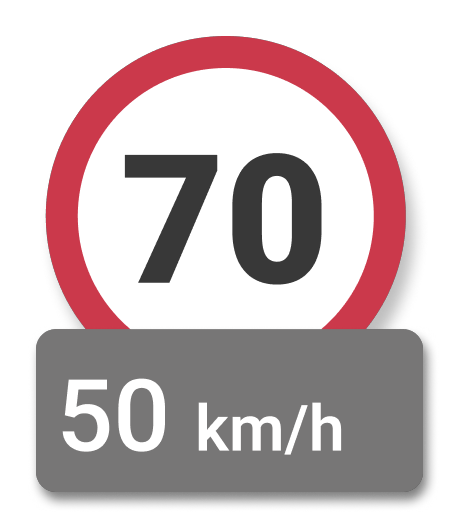
The example below demonstrates the usage of the built-in EtaBar() Composable accepting StateFlow
Exposed Navigation Data
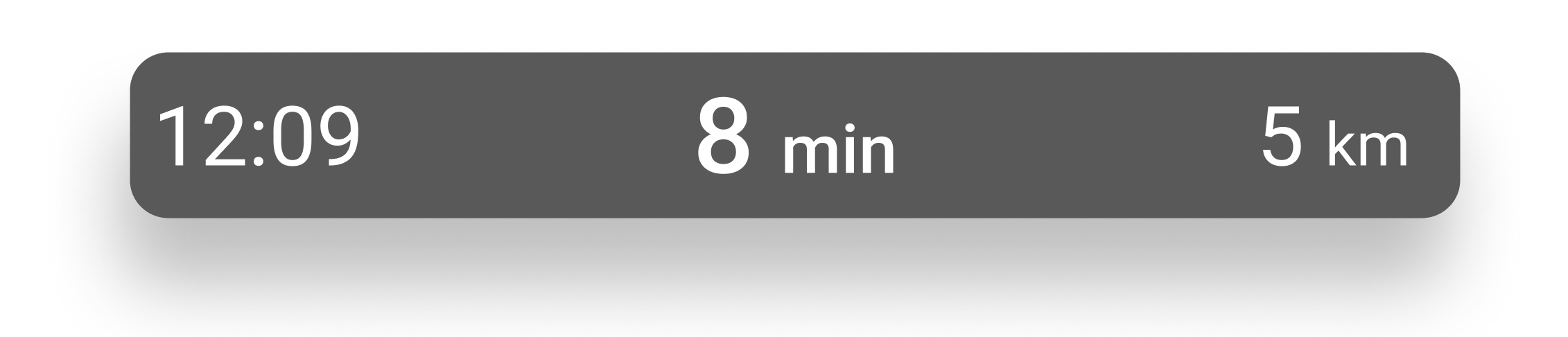
Current Speed, Speed Limits, Speeding Information
speedState: StateFlow<SpeedModel?>
Represents the current driving speed and speed limit information.
Model: SpeedModel
| Field | Type | Description |
|---|---|---|
currentSpeed |
Int |
Current speed in km/h |
speedLimit |
Int |
Current speed limit in km/h, if available |
isSpeeding |
Boolean |
Whether the current speed limit is being exceeded |
Usage (built-in Composable):
Arrival Predictions
etaDataState: StateFlow<EtaModel?>
Provides formatted, user-friendly information about the estimated time of arrival and remaining travel metrics.
Can be used to source data for EtaBar:
Model: EtaModel
| Field | Type | Description |
|---|---|---|
eta |
String |
Estimated arrival time at the destination |
timeLeft |
AnnotatedString |
Remaining travel time |
distanceLeft |
AnnotatedString |
Remaining distance |
Usage (built-in Composable):
Navigation Instructions
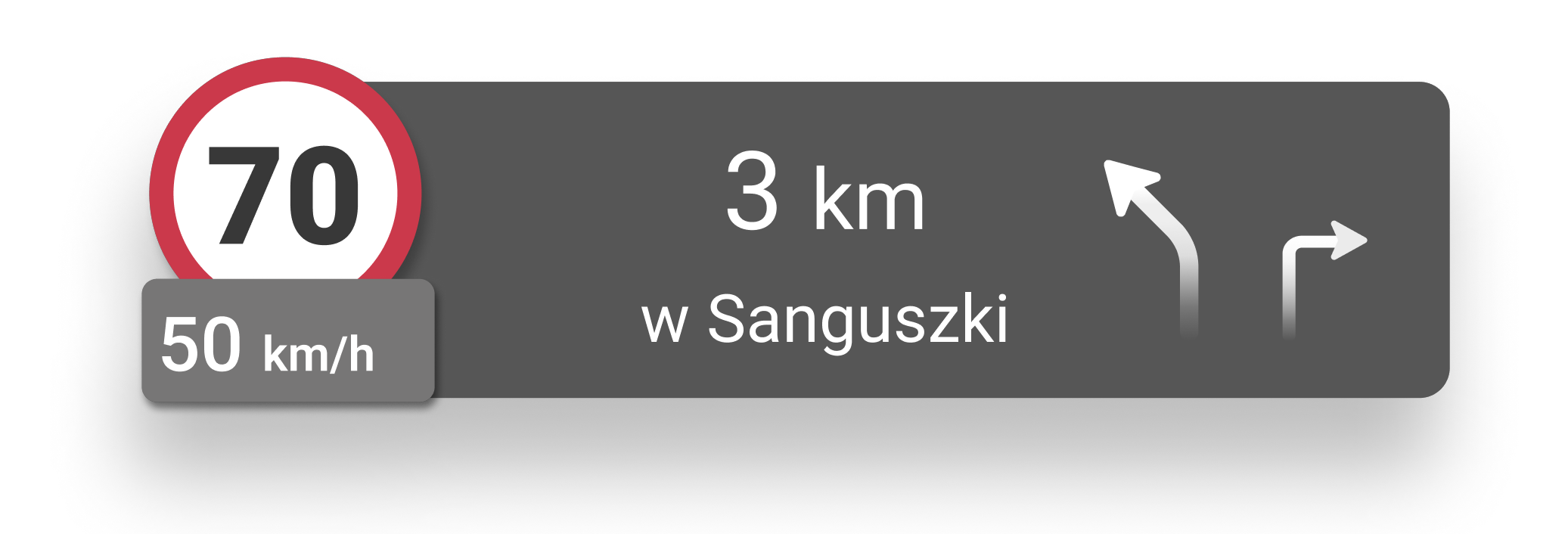
maneuversDataState: StateFlow<ManeuversModel?>
Contains data about the next navigation instructions and maneuver guidance.
Can be used to feed data into ManeuversBar:
Model: ManeuversModel
| Field | Type | Description |
|---|---|---|
nextManeuver |
Maneuver? |
The upcoming maneuver, if available |
followingManeuver |
Maneuver? |
The maneuver after the upcoming one, if available. |
distance |
AnnotatedString |
Distance to the upcoming maneuver |
nextRouteName |
String |
Name of the road to turn onto |
isOffRoute |
Boolean |
Indicates if the user has deviated from the planned route |
Enum: Maneuver
Usage (built-in Composable):
Lane Assistance
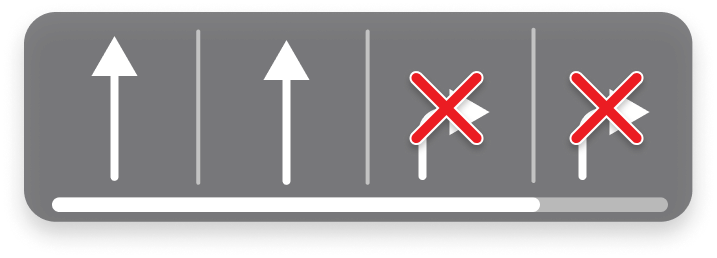
laneAssistantState: StateFlow<LaneAssistantModel?>
Provides lane guidance information for intersections.
Can be used in conjunction with EtaBar to achieve similar results:
Model: LaneAssistantModel
| Field | Type | Description |
|---|---|---|
lanes |
List<Lane> |
List of all lanes on the road |
progress |
Double |
Progress toward the end of the current lane section |
Nested model: Lane
| Field | Type | Description |
|---|---|---|
leftLine |
Line |
The left boundary line of the lane |
rightLine |
Line |
The right boundary line of the lane |
directions |
Set<LaneDirection> |
The set of possible driving directions supported by this lane |
disabled |
Boolean |
Whether the lane should be avoided |
Enum: Line
Enum: LaneDirection
Usage (built-in Composable):
User Location
locationState: StateFlow<LocationModel?>
Model with current location. It is used to properly update the position indicator on the map.
This model has no public fields. Its only usage is passing the data to IMap.onNewLocation(locationModel: LocationModel), like this:
Routes
routesDataState: StateFlow<RoutesModel?>
Model with routes data and its dependencies, such as geometry, traffic, waypoints, etc. It is used to draw routes on the map.
Position indicator style
Currently, the position indicator style is determined automatically by this data. If a non-null routes model is passed to the map, the indicator switches to navigation mode (arrow), with a null routes model, it switches to map mode (dot).
This model has no public fields. Its usage is limited to passing the data to IMap.drawRoutes(routesData: RoutesModel?) like this:
Voice guidance
soundState: StateFlow<SoundState?>
Provides information about current voice guidance mode.
Enum: SoundState
Usage (built-in Composable):
Exception handling
Any SDK (and its components) exception occurrence should be considered fatal (SDK inner state is compromised) - application restart is required.
Exception occurrence
Further SDK usage (and its components) after an exception may be unstable.
Apart from unstable operation, it can also lead to memory leaks.
If some additional actions are required before application restart, use try / catch block with final rethrow.
Direct crash example:
coroutineScope.launch {
    try {
        NavigationApi.updateNavigation(NavigationEvent.ManualRouteRecompute)
    } catch (exception: Exception) {
        // process exception for example send it somewhere
        throw(exception)
    }
}
Inner crash example:
fun isExceptionFromSDK(exception: Exception): Boolean {
    // Check if exception is from sdk (for example filter stacktrace package lines etc.).
}

Thread.setDefaultUncaughtExceptionHandler { _, exception ->
    // check if crash from sdk
    if (isExceptionFromSDK(exception)) {
        // handle sdk exception
        throw exception
    } else {
        // handle other app exceptions
    }
}
Report sending
If the SDK crashes, causes problems, you want to send additional information to us, we provide the option to send a report from within the application with internal SDK logs. See details: INavigationAPI.sendReport
Diagnostic report logs contain:
- SDK method call history (collected automatically);
- SDK build fields (collected automatically):
Build.BRAND,Build.MODEL,Build.PRODUCT,Build.DEVICE,Build.ID,Build.VERSION.RELEASE,Build.VERSION.SDK_INT; - object
ReportParamswith data completed by user
Security notice
Reports are automatically deleted after 30 days.
We automatically collect data relating to the SDK ONLY.
The user is responsible for the data contained in ReportParams.
Examples:
- Diagnostic report:
- Crash report: